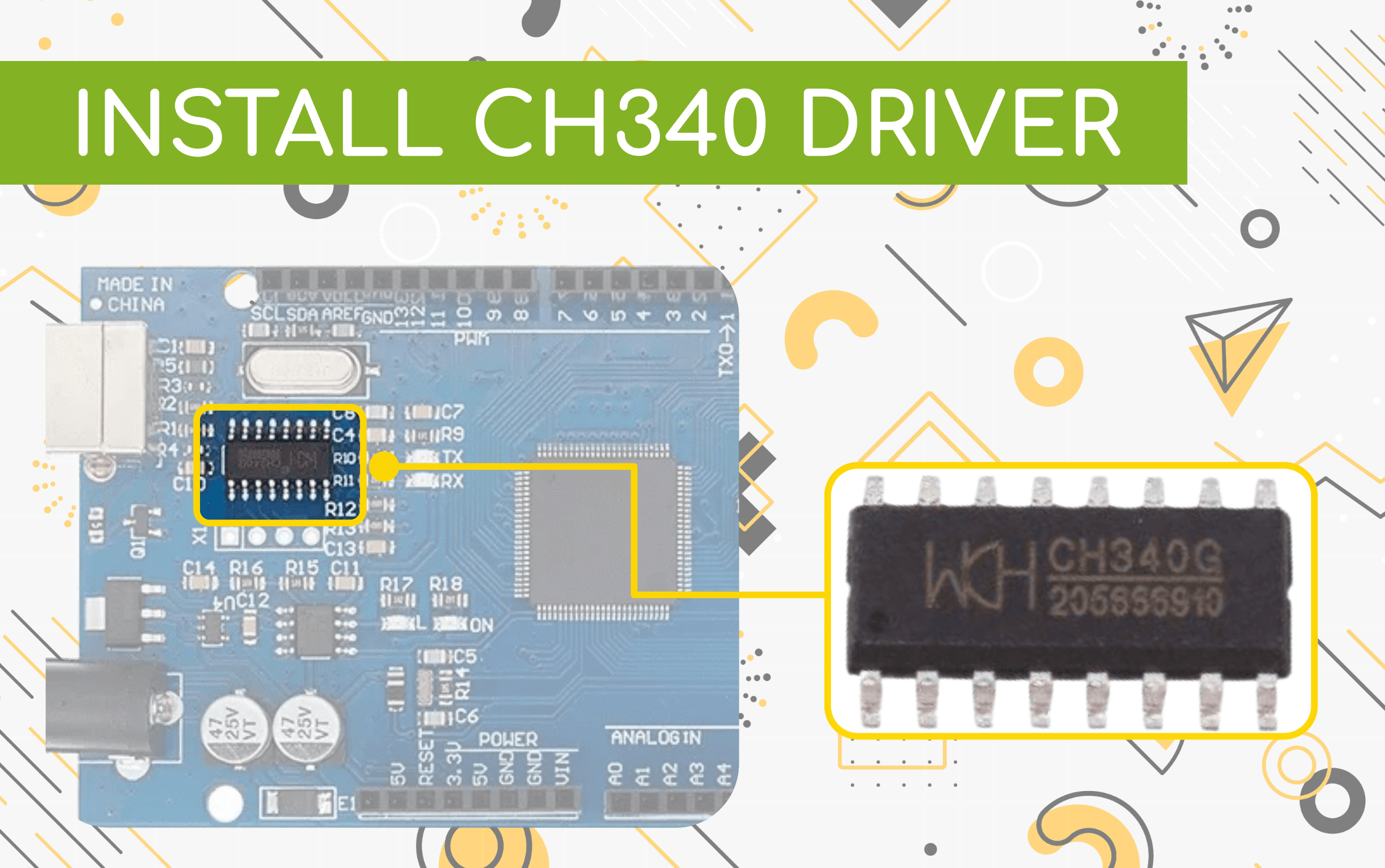
Before installing anything
The CH340 family is a USB-to-serial bridge used on many Arduino-compatible boards and microcontroller breakouts. Current Windows, macOS and Linux installations may already include a working driver, so first connect the board with a known data-capable USB cable and check whether a new serial port appears.
What to expect
- Windows port
- COM3, COM4 or another COM number
- View in Device Manager or Arduino IDE
- macOS port
- /dev/cu.wchusbserial…
- The suffix varies by computer
- Linux port
- /dev/ttyUSB0 or similar
- Your user may need serial-port permission
- CH340G and CH340C
- Same driver family
- Their oscillator arrangement differs, not the host driver
Get the driver from WCH
Use the chip maker’s download pages rather than an old mirrored installer. Managed school or workplace computers may require an administrator to approve the package.
Official driver downloads
Windows installation
- Disconnect the CH340 board.
- Download and extract WCH’s Windows package.
- Run the installer and choose Install. Approve the administrator prompt if Windows shows one.
- Reconnect the board with a data-capable USB cable.
- Open Device Manager → Ports (COM & LPT) and look for USB-SERIAL CH340 (COM…).
Open Device Manager, then expand Ports (COM & LPT) to find the CH340 serial port.
You can also disconnect and reconnect the board while Arduino IDE → Tools → Port is open. The newly appearing port is usually the board you just connected.
macOS installation
- Connect the board and check Arduino IDE → Tools → Port before installing anything.
- If no new port appears, disconnect the board and download WCH’s current macOS package.
- Open the included installer and follow its instructions. Allow the driver in System Settings → Privacy & Security if macOS asks.
- Restart only when the installer requests it, then reconnect the board.
- Compare the serial-device list before and after connecting:
1ls /dev/cu.*
A WCH device commonly appears as /dev/cu.wchusbserial…, although the exact suffix varies.
Linux and Raspberry Pi OS
Most current Linux distributions include the kernel driver. Connect the board, then inspect USB serial devices:
1ls /dev/ttyUSB*
For more context, compare dmesg output immediately after connecting the board, or use Arduino CLI:
1arduino-cli board list
If the port exists but Arduino cannot open it, check your distribution’s serial-device group and log out and back in after any permission change. Avoid running the IDE as root.
Confirm the result
Troubleshooting
Common CH340 problems
No new port appears+
Likely cause: Charge-only cable or a poor USB connection
Try a known data cable, another USB port and a direct connection without a hub.
Windows shows an unknown device+
Likely cause: Driver did not install or is blocked
Re-run WCH’s current signed installer as an administrator, then reconnect the board.
macOS blocks the package+
Likely cause: Driver approval is pending
Open Privacy & Security, approve the identified WCH software, then follow the installer’s restart instructions.
Linux port exists but cannot be opened+
Likely cause: User lacks serial-device permission
Add the user to the distribution’s serial group and sign in again; do not run the IDE as root.
Port appears but upload fails+
Likely cause: Wrong board, port or bootloader selection
Select the actual board definition and the newly appearing port, then retry with the board’s documented processor/bootloader setting.