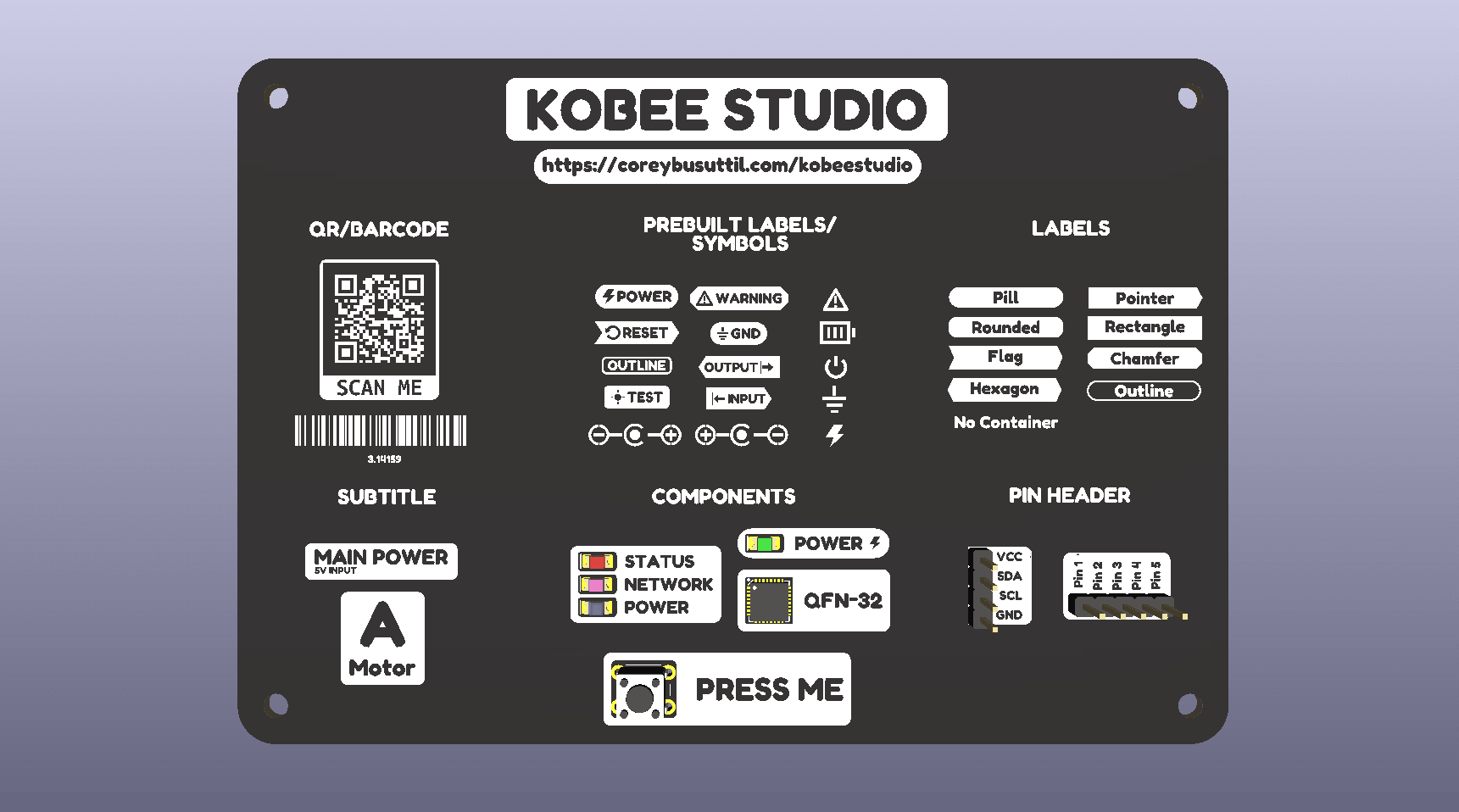
Kobee Studio is a KiCad plugin, not a footprint library. Version 1.4.0 is the current stable release for KiCad 10 on macOS and Windows. Linux uses the same package, but still needs full validation before it is recommended for critical boards.
Install a release
- Download
Kobee-Studio-1.4.0-pcm.zipfrom the Kobee Studio 1.4.0 release. Do not unzip it. - Open Plugin and Content Manager from KiCad PCB Editor.
- Choose Install from File…, select the ZIP and approve the install.
- Open Tools → External Plugins → Kobee Studio: Create PCB Artwork.
Build from source
The current source uses KiCad's supported IPC plugin API. To build it:
typescript
1git clone https://github.com/mrcpuddington/kobeestudio.git2cd kobeestudio3python3 pcm/build.py
Install the generated PCM ZIP with Plugin and Content Manager → Install from File…. The package uses the identifier com.github.mrcpuddington.kobeestudio.
Platform notes
Kobee Studio 1.4.0 is tested on KiCad 10 for macOS and Windows. Linux uses the same plugin package, but complete UI and artwork validation is still in progress.