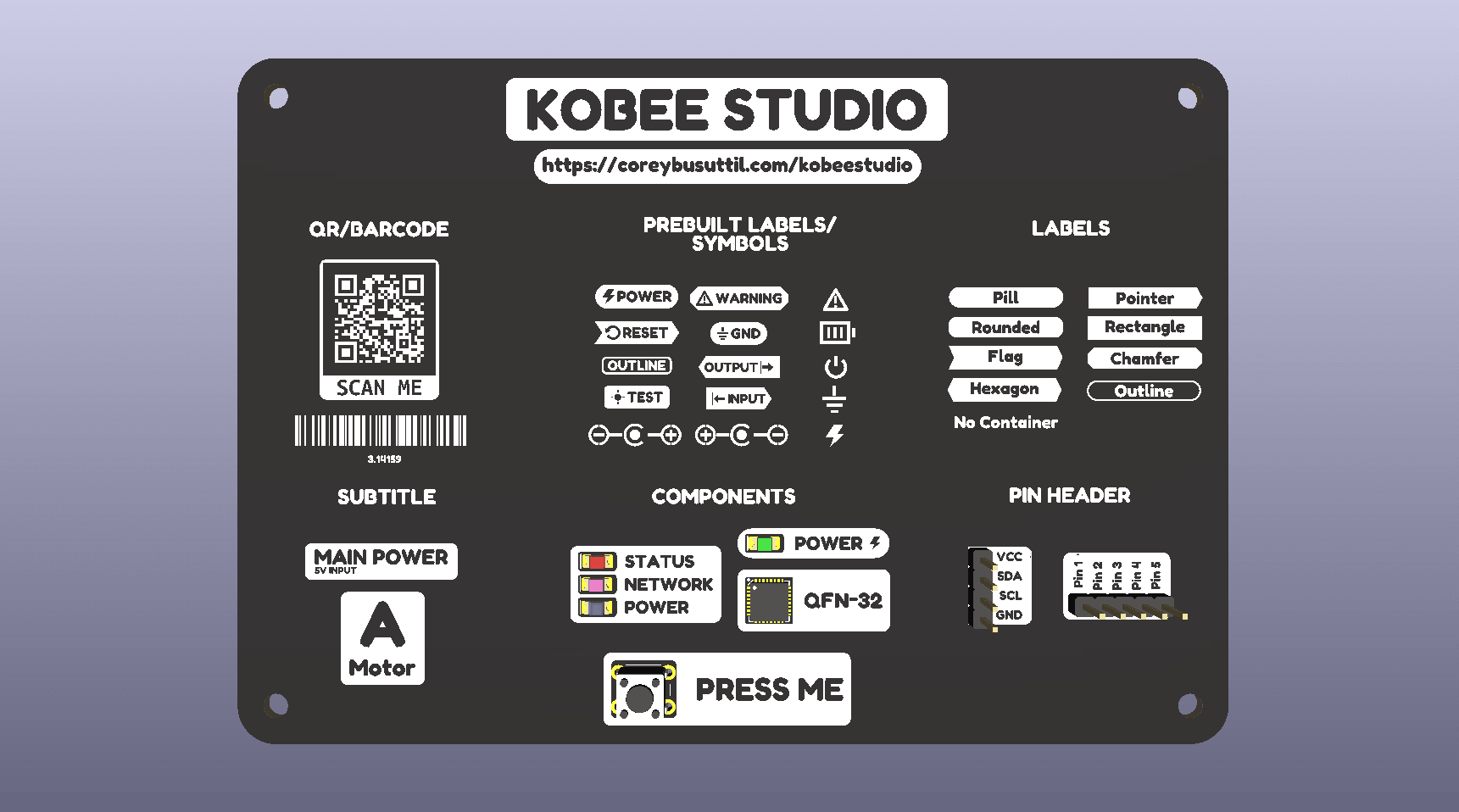
The plugin does not appear
Confirm that the package matches your KiCad version, then fully quit and reopen PCB Editor. Check Preferences/Settings → Action Plugins and enable Show Button for Create PCB Artwork. If it is still missing, use Refresh Plugins and restart again.
The artwork is on the wrong side
Open the artwork item and check its output layer. Kobee Studio intentionally emits each item to one layer. Duplicate the item when you need the same marking on both sides; do not rely on an automatic mirror unless the design calls for it.
The preview and board look different
Check the selected layer, text size, line thickness and board zoom. Very small silkscreen features may be visible in the preview but fall below a fabricator's minimum. Inspect the board at 1:1 scale and use the fabricator's design rules.
An existing item will not reopen
Select the complete Kobee Studio footprint rather than one child graphic, then open the plugin. If the item was created by an older KiBuzzard workflow, keep a copy of the board and report the smallest reproducible example with your KiCad version and operating system.
A QR code or barcode will not scan
Increase the code size, preserve the quiet zone, increase contrast and test the finished board surface. Shorter payloads are easier to scan. Do not remove the generated quiet zone to make a code fit a crowded area.
What to include in a bug report
Include the Kobee Studio version, KiCad version, operating system, board file or minimal reproduction, the settings used, and a screenshot of the unexpected result. Add the relevant log output when available.